FramePacing Frame Time Optimizer
A downloadable tool for Windows
FRAMEPACING
A high-precision framerate limiter for Windows.
Stable frame delivery. Lower temperatures. Better visuals.
Why FramePacing Exists
A game running at 60 FPS isn't necessarily smooth. If the time between frames varies — even slightly — the result is visible stutter, regardless of the average framerate. This is a frame pacing problem, and it's the main reason a locked 30 FPS on a console often feels better than an unlocked, inconsistent framerate on PC.
FramePacing addresses this directly: it enforces a strict, even interval between frames, eliminating the timing irregularities that cause micro-stutter.
Features
Consistent Frame Pacing
Built-in game limiters and driver-level caps tend to fluctuate, producing uneven
frametimes. FramePacing holds them to a flat, uniform line for a stable experience.
Redistribute GPU Headroom
Capping the framerate frees up GPU resources that would otherwise go to unused
frames. That headroom can be spent on higher quality settings, ray tracing, or
a higher resolution.
Lower Temperatures and Noise
A stable, capped framerate reduces unnecessary GPU load. The result is cooler
operation, quieter fans, lower power consumption, and less long-term wear on
your hardware.
Adjustable at Any Time
Driver-level limiters require restarting the game to change the cap. FramePacing
lets you modify the target framerate instantly, without closing anything.
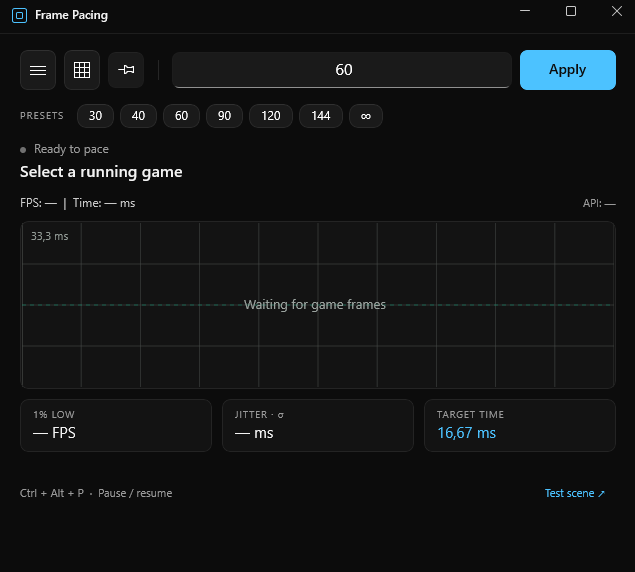
Real-Time Frametime Graph
A minimal overlay displays a live frametime graph, so you can verify pacing
quality directly while you play.
Simple and Lightweight
One click. No configuration required to get started.

Recommended Setup
1. Set the FPS limit. Choose a framerate your system can sustain consistently, and disable all other limiters (in-game and driver-level) to avoid conflicts.
2. Sync with your display. On a VRR monitor, enable G-Sync or FreeSync. On a fixed-refresh monitor, enable V-Sync in the game's settings. This eliminates screen tearing.
3. Enable motion blur. Motion blur approximates the exposure behavior of a camera, smoothing the visual gaps between frames during fast camera movement.
4. Use a controller. Analog stick input remains responsive at low framerates, whereas a mouse typically requires a higher framerate to feel equally smooth.
Download
Leave a comment
Log in with itch.io to leave a comment.